Governix for Jira - User Guide
Effective Date: March 23, 2026
Quick Start (≈3 minutes)
- Command Center: Check red or amber indicators.
- Governix for Jira Rovo Agent: Add meaning and narrative to the indicators.
- Agent Responses and Data: Create Jira Work Items and Confluence Pages.
- Inactives: Start with Fields or Screens.
- Duplicates: Resolve the worst offenders first.
On This Page
- Command Center
- Rovo Governance Copilot
- Duplicates
- Inactives
- Risks and Drifts
- Spaces
- Space Attributes
- Work Items
- Work Item Attributes
- Workflows
- Fields
- Screens
- Schemes
- Boards, Dashboards and Filters
- Groups and Users
- Governix for Jira - Rovo Copilot Playbook
🧭 Command Center
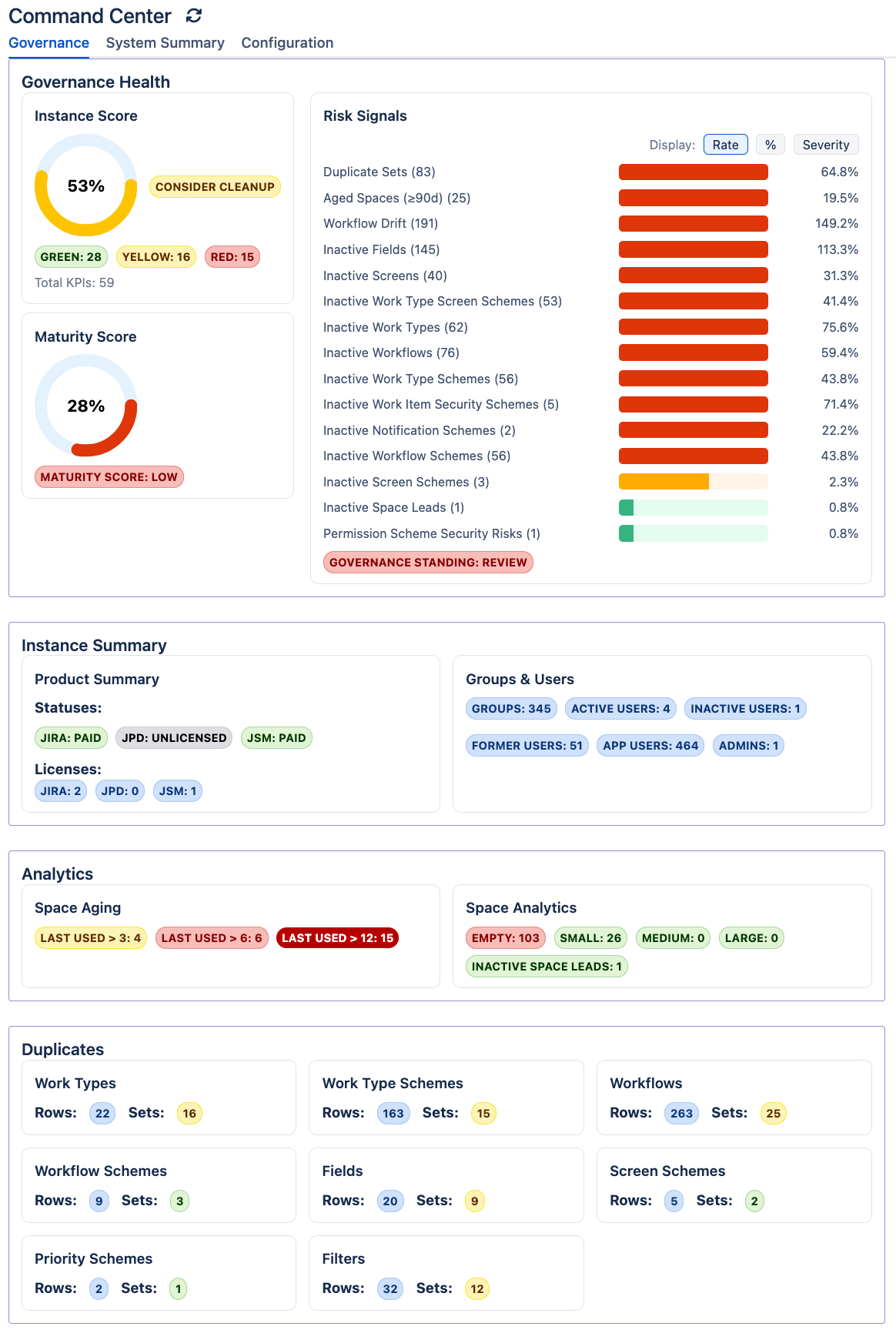
Command Center overview
Audience: Jira Admins, Governance Leaders
Why this matters: This is your single pane of glass for instance health--find risks fast and decide where to act first.
Scope
- Governance
- System Summary
- Governance Trends
- Configuration
- Rovo AI
How to Use
- Review Instance Score, Risk Signals, and Maturity Score.
- Scan for spikes (e.g., inactive items, duplicates).
- Click into the area with the biggest signal (Fields, Workflows, Screens, etc.).
- Use Refresh after making changes in Jira.
- Set your own KPI lower and upper thresholds.
- Use the Governix for Jira Rovo agent to add meaning and narrative around the numbers.
- Convert the agent responses into Jira work items and/or Confluence pages.
- After accumulating enough snapshots, review and monitor your instance trends.
- Open the Governance Trends tab to monitor changes in your Instance and Maturity Scores over time.
- Analyze historical governance signals including inactive configurations, duplicates, workflow drift, security risks, againg spaces, and inactive users.
- Use date ranges and trend periods (Day, Week, Month, Year) to idenitfy long-term patterns and measure improvement efforts.
- Expand trend details to review deeper governance insights for a spec observation period.
- Use our native agent to explain trend movements, identify governance concerns and improvement opportunities, and generate actionable Jira work items or Confluence reports from the analysis.
Benefits
- Faster triage and time‑to‑action.
- Identify risks and cleanup opportunities, leading to an optimized and healthy instance.
- Visibility into risk and cost for leadership.
- Turns raw configuration into a prioritized to-do list.
- Convert data and agent responses into actionable work and documentation.
- Quick, on-demand work item and page generation--ideal for audit and leadership.
- Follow the trends unique to your environment and take appropriate actions based on real data and guidance, not hypotheticals.
- Tune lower and upper limits to your desired KPIs thresholds.
- Measure the impact of governance, cleanup, and standardization initatives through historical trend analysis.
🤖 Rovo Governance Copilot
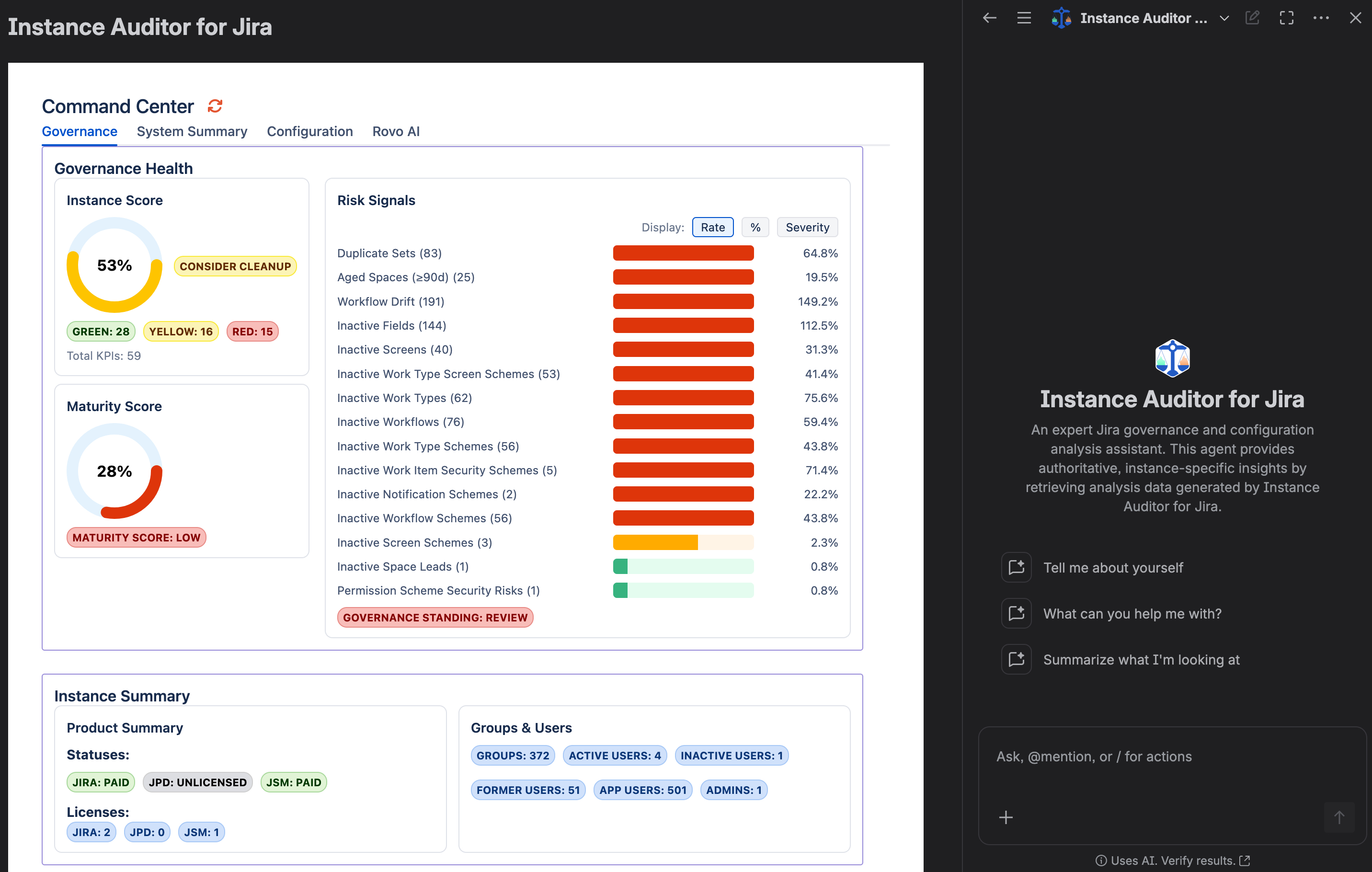
Rovo overview
Audience: Jira Admins, Platform Owners, Governance Leaders
Why this matters: Translate governance insights into action using an AI powered copilot grounded in your Governix Command Center data.
Scope
- Governance Analysis
- Governance Trends
- Jira Execution
- Confluence Documentation
How to Use
- Open Ask Rovo from the Jira header.
- Switch to the Governix for Jira agent.
- Ask governance questions based on your Command Center data.
- Request Jira work items or Confluence pages when ready to act.
- Follow the trends unique to your enterprise environment.
Examples
- Review Instance Score, Maturity Score, and governance lozenges.
- Explain why certain areas are flagged amber or red.
- Create Jira Epics and Stories for Audit, Cleanup, Prevent, Remediate, or Report initatives.
- Create rich Confluence wiki pages for Audit, Cleanup, Prevent, Remediate, or Report initatives.
- Link Jira Epics and Stories to Confluence wiki pages for seamless, bi-drectional traceability.
- Generate Confleunce governance documentation for stakeholders.
- What is the current posture for my domains?
- Give me a breakdown of my snapshot data.
Benefits
- Faster interpretation of governance signals without manual analysis.
- Consistent, RenWare-guided recommendations tailored to your instance.
- Reduced context switching between analysis, Jira and Confluence.
- Traceability from insight to execution.
- Quick creation of governance workk items (Epics and Stories) in Jira.
- Create full context-rich governance pages in Confluence.
- Easy linking of Jira work items to Confluence pages.
- Review and monitor domain trends unique to your enterprise environment.
🧬 Duplicates
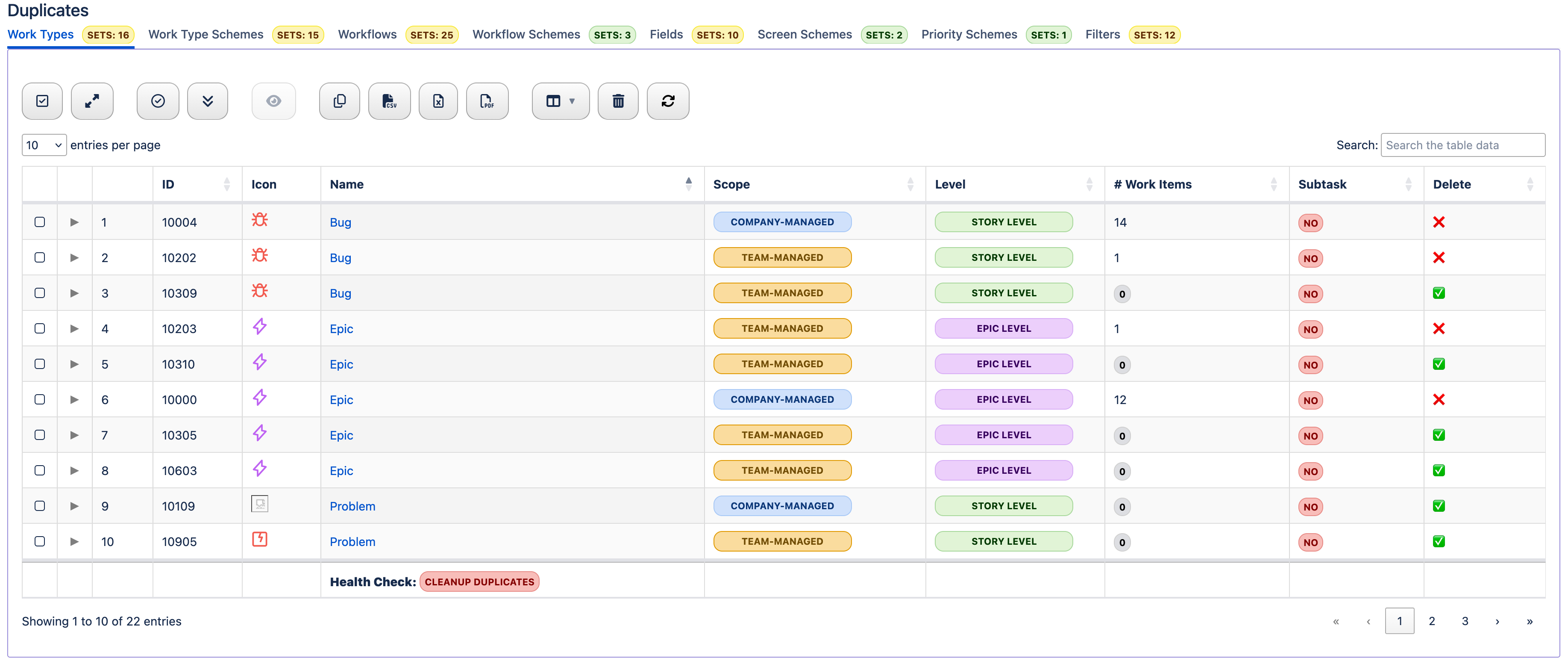
Duplicates overview
Audience: Jira Admins, Stewards
Why this matters: Duplicate configs create noise, increase maintenance cost, and confuse users/reports.
Scope
- Work Types
- Work Type Schemes
- Workflows
- Workflow Schemes
- Fields
- Screen Schemes
- Priority Schemes
- Filters
How to Use
- Group by name or type to spot likely duplicates.
- Decide on the authoritative item; rename or retire others in Jira.
Benefits
- Cleaner reporting and less user confusion.
- Lower run cost via reduced clutter.
- Foundation for analytics and auditability.
🧹 Inactives
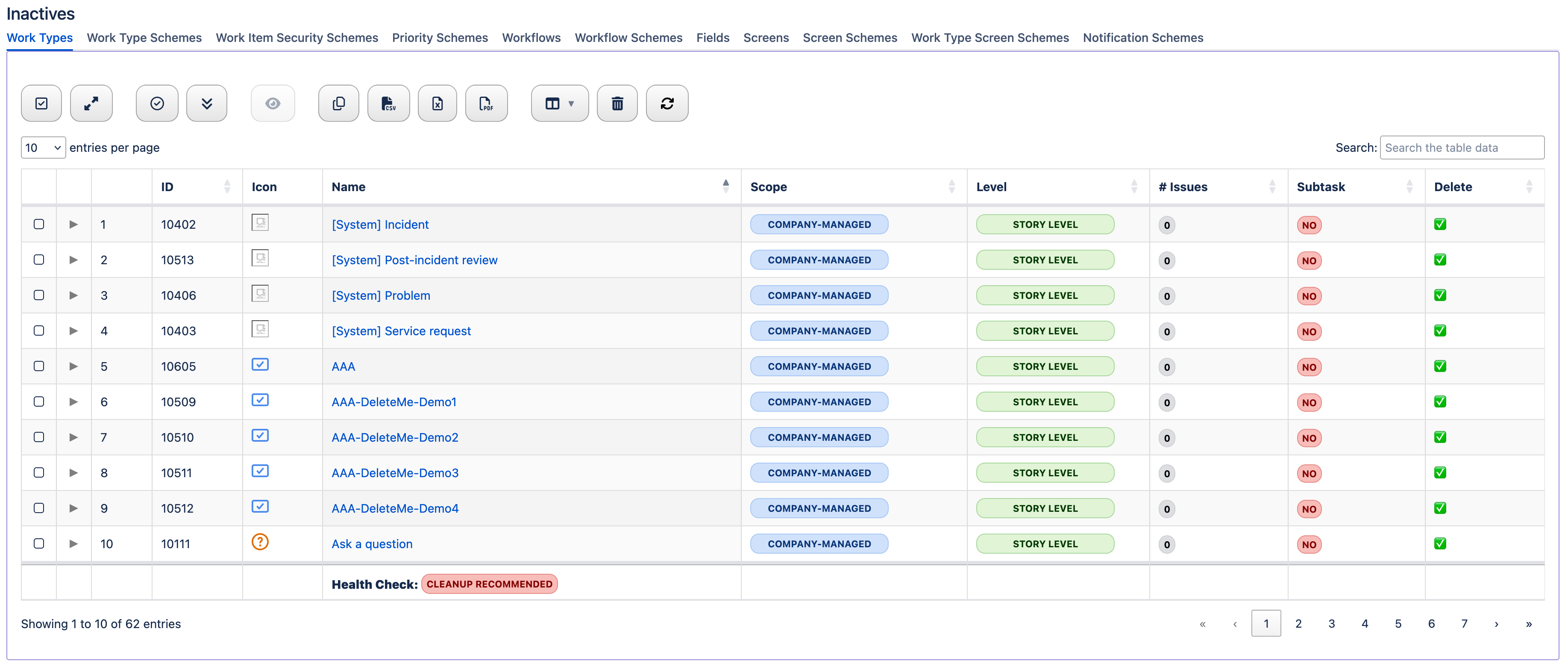
Inactives overview
Audience: Jira Admins
Why this matters: Pruning inactives reduces risk and improves performance and user experience.
Scope
- Inactive Work Types
- Inactive Work Type Schemes
- Inactive Workflows
- Inactive Fields
- Inactive Screens
- Inactive Screen Schemes
- Inactive Work Type Screen Schemes
- Inactive Priority Schemes
- Inactive Notification Schemes
- Inactive Workflow Schemes
How to Use
- Start where counts are highest (often Fields or Screens).
- Open detail rows to see where items are used.
- Decommision in Jira; then Refresh here.
Benefits
- Smaller footprint and better performance.
- Governance and compliance benefits.
- Improved end-user experience.
⚠️ Risks and Drifts
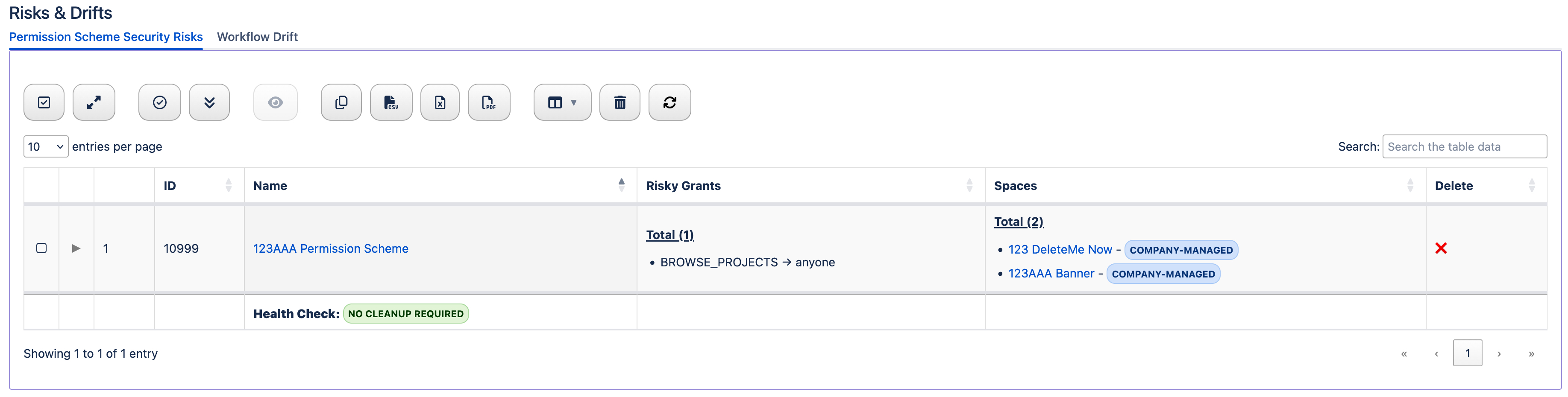
Risks and Drifts overview
Audience: Jira Admins, Governance Leaders
Why this matters: Surface two fast movers for security and standardization: public exposure in permission schemes and workflow designs that have drifted into single‑use islands.
Scope
- Permission Scheme Security Risks
- Workflow Drift
How to Use
- Open Permision Scheme Security Risks → sort by Risky Grants or Space. Expand rows to see which permissions are public and which spaces use them; open the admin link to tighten or remove risky grants; retire schemes that are unused (✅).
- Open Workflow Drift → review workflows tied to schemes used by a single Active space. Expand detail to see scheme/space references and statuses; standardize or merge where appropriate; plan safe migrations.
- After applying changes in Jira, click Refresh to re‑evaluate the signals.
Benefits
- Lower data exposure risk by eliminating public anonymous access paths.
- Fewer one-off configurations; stronger reuse and simpler governance.
- Clear candidates for consolidation and decommissioning (schemes, workflows).
📁 Spaces (Projects)
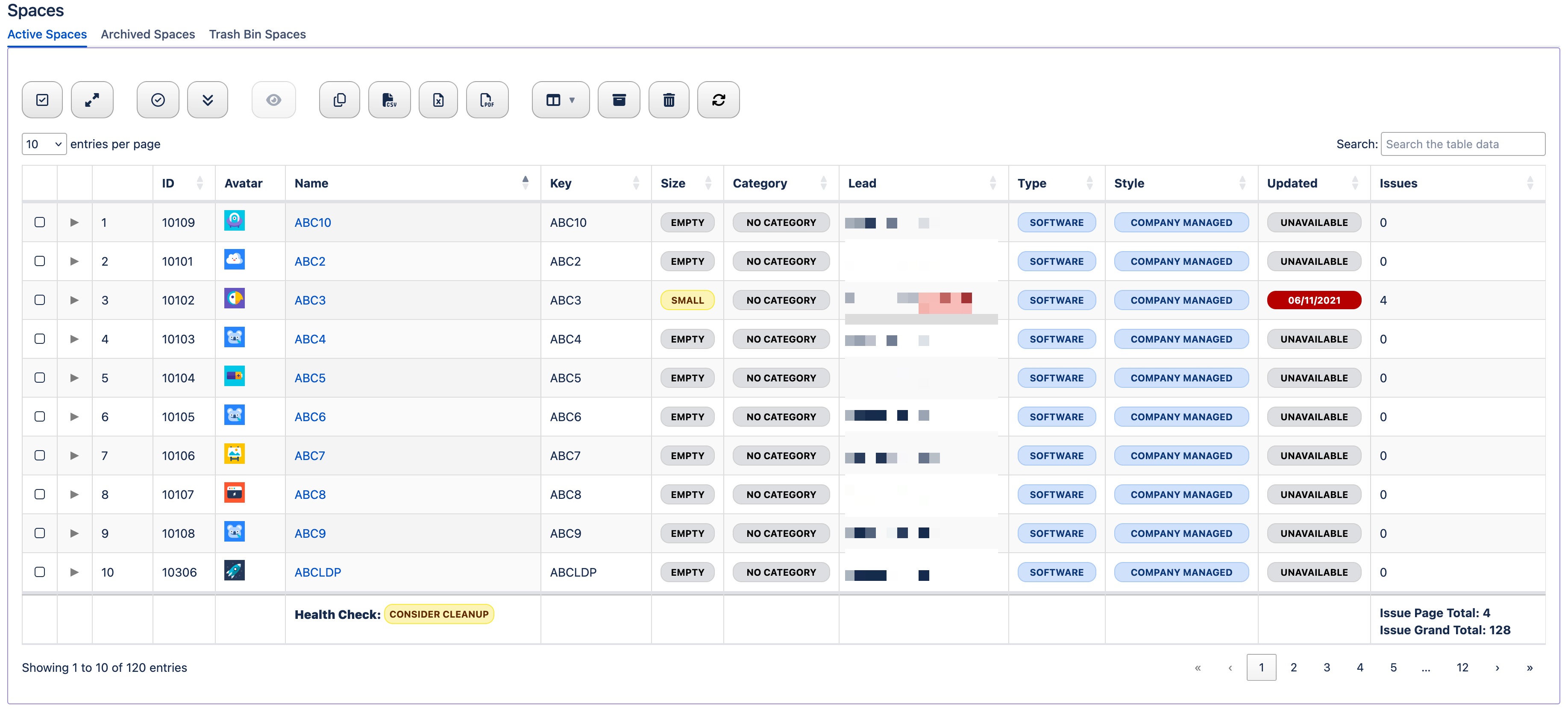
Spaces overview
Audience: Portfolio Owners, Jira Admins
Why this matters: Clear lifecycle and ownership reduces sprawl, risk , and accidental data exposure.
Scope
- Active Spaces
- Archived Spaces
- Spaces in Trash
How to Use
- Validate Space Lead and management type.
- Confirm archive and trash dates before permanently deleting.
- Prioritize large or private spaces for review.
Benefits
- Portfolio hygiene and lifecycle clarity.
- Risk reduction via visibility into privacy and simplified flags.
🏷️ Space Attributes
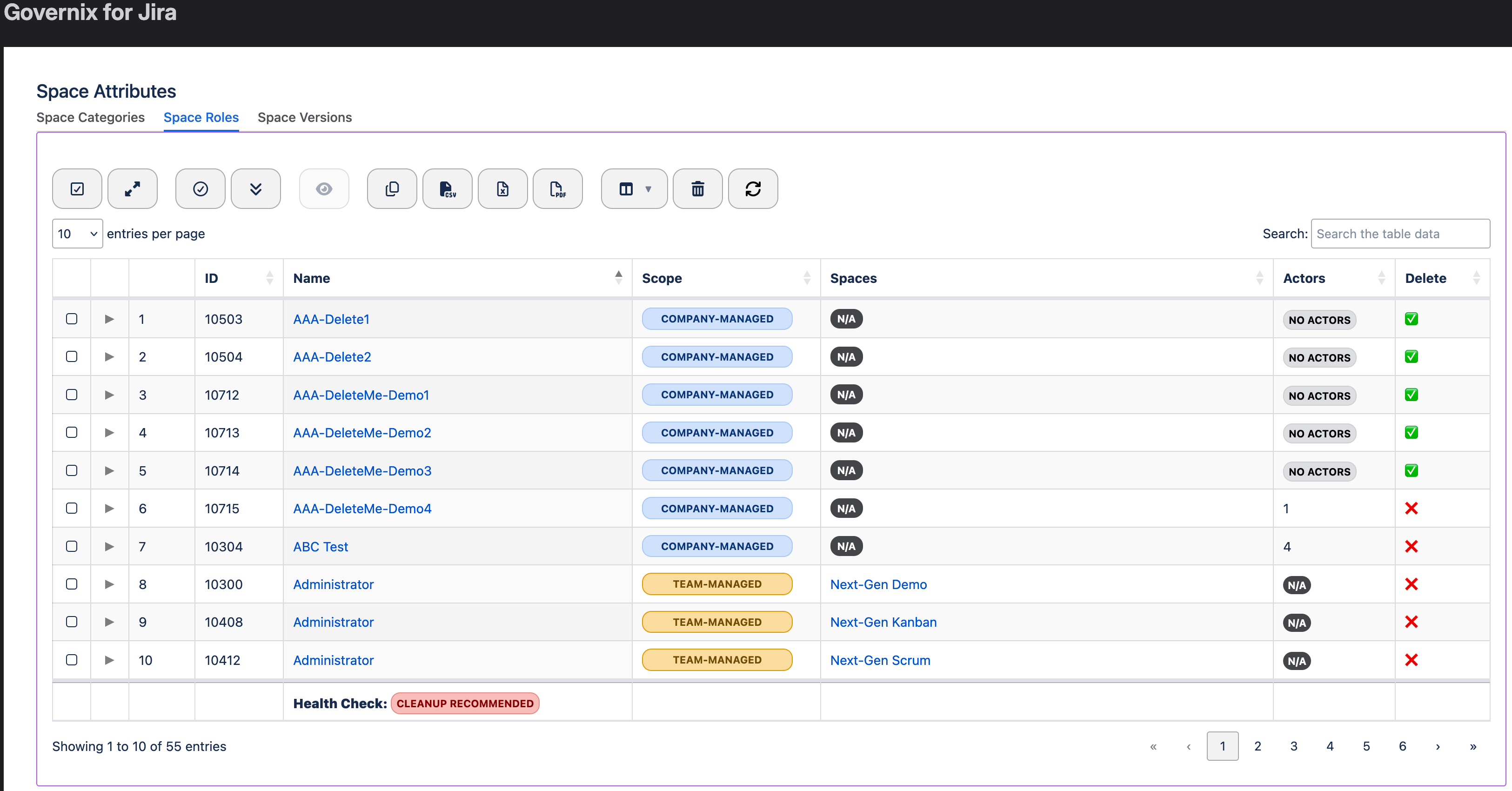
Space Attributes overview
Audience: Portfolio Owners, Jira Admins
Why this matters: Standardized categories, roles, and versions enable consistent reporting and releases.
Scope
- Space Categories
- Space Roles
- Versions
How to Use
- Normalize categories for portfolio reporting.
- Review role actors and remove unused roles.
- Prune stale versions.
Benefits
- Predictable operating model.
- Release hygiene and reporting clarity.
🧩 Work Items
Work Items overview
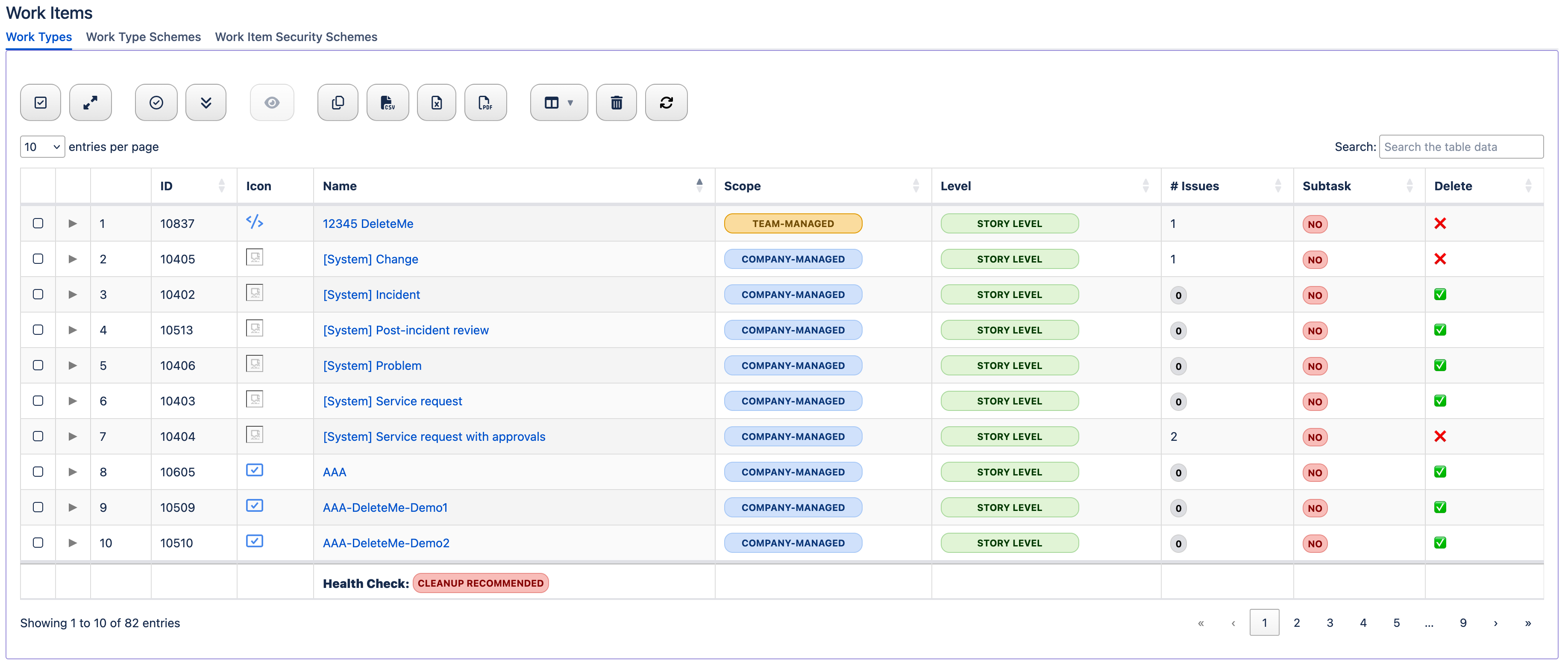
Audience: Jira Admins, Governance Leaders
Why this matters: Right-sizing the catalog and reusing schemes cuts complexity and risk.
Scope
- Work Types
- Work Type Schemes
- Work Item Security Schemes
How to Use
- Right-size your catalog and reuse schemes.
- Validate security levels and memberships.
Benefits
- Fewer variants and stronger governance.
- Role-based visibility for compliance.
⚙️ Work Item Attributes
Work Item Attributes overview
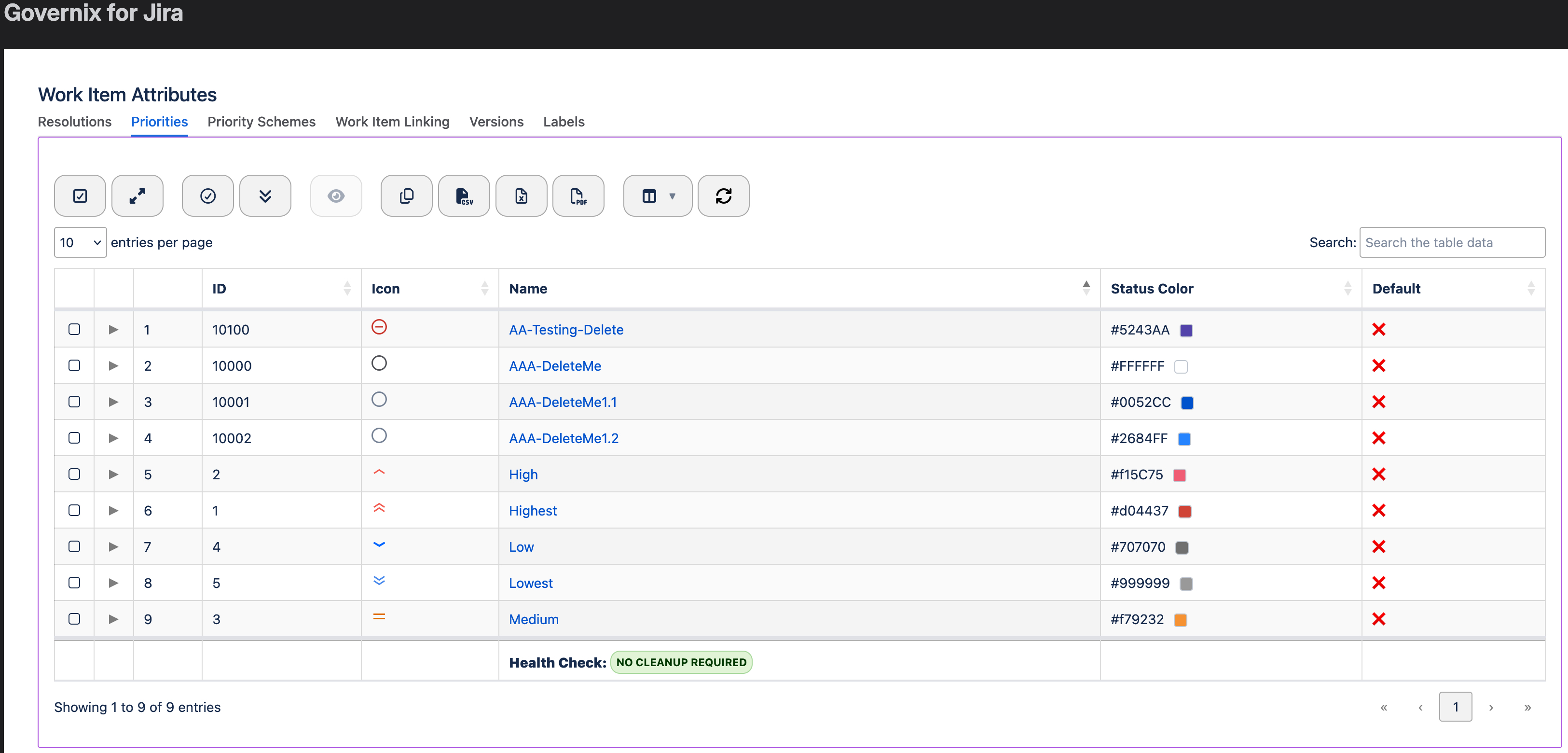
Audience: Jira Admins
Why this matters: Consistent attributes improve user experience and analytics across teams.
Scope
- Resolutions
- Priorities
- Priority Schemes
- Work Item Linking
- Versions
- Labels
How to Use
- Keep lists concise; verify defaults.
- Ensure priority schemes are consistent.
- Standardize link semantics; prune stale versions and labels.
Benefits
- Consistent semantics accelerate delivery.
- Ensure priority schemes are consistent.
🔁 Workflows
Workflows overview
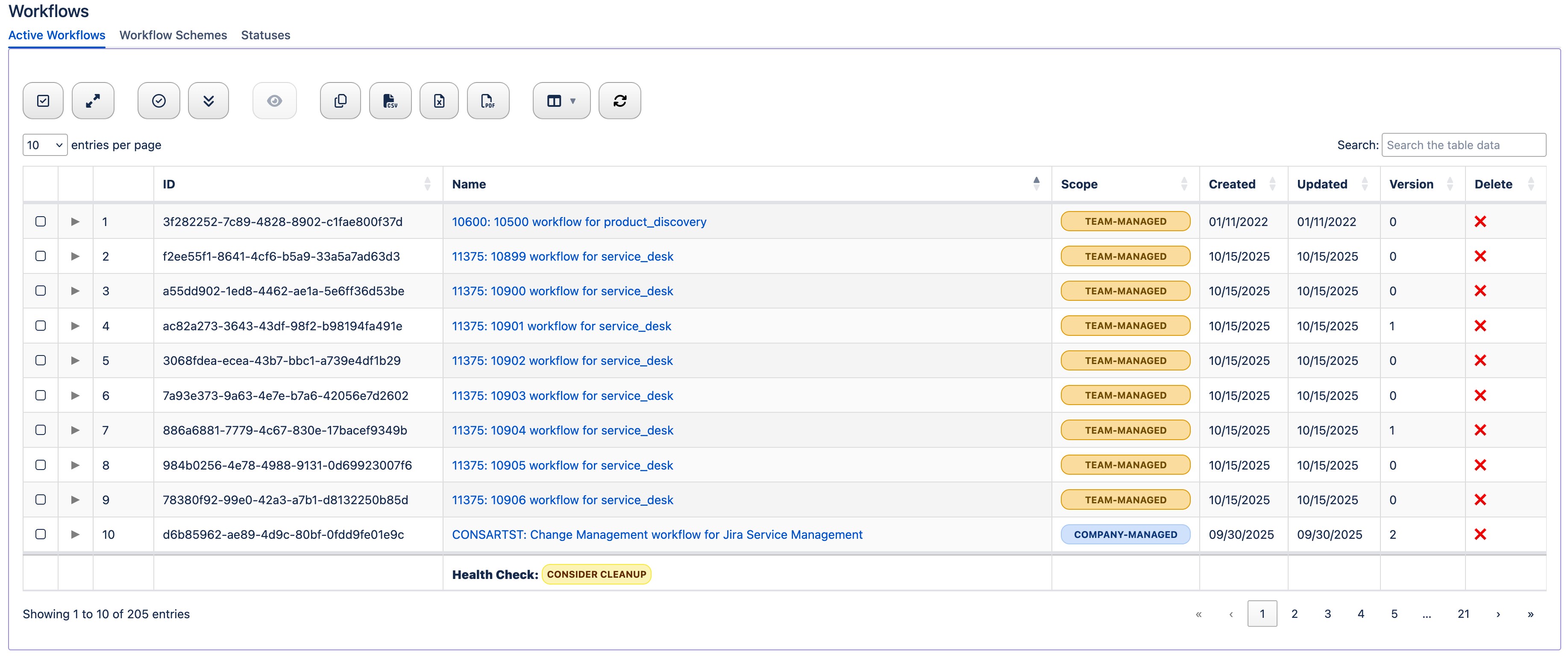
Audience: Jira Admins, Governance Leaders
Why this matters: Healthy workflows reduce cycle time and change risk.
Scope
- Active Workflows
- Workflow Schemes
- Statuses
How to Use
- Target stale designs; align scopes.
- Consolidate schemes; validate status names/categories.
Benefits
- Reduced cycle time and change risk.
- Lower maintenance overhead.
🗂️ Fields
Fields overview
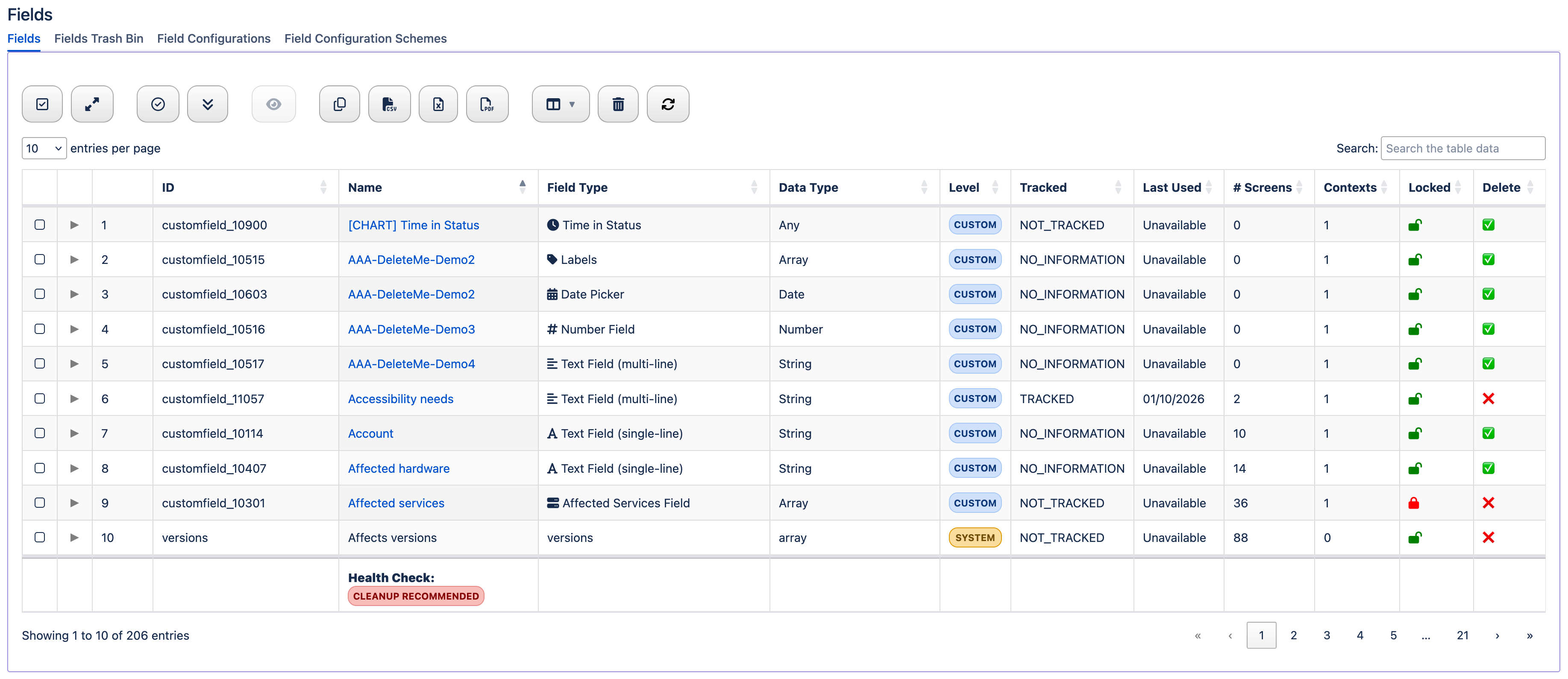
Audience: Jira Admins
Why this matters: Fields are a top driver of clutter, confusion, and performance cost if unmanaged.
Scope
- Fields
- Fields in Trash Bin
- Field Configurations
- Field Configuration Schemes
How to Use
- Sort by last used or # screens to find consolidation targets.
- Use trash dates to decide on recovery vs deletion.
- Ensure configurations match intake patterns.
Benefits
- Lean forms and trustworthy data..
- Faster creation and search.
🖼️ Screens
Screens overview
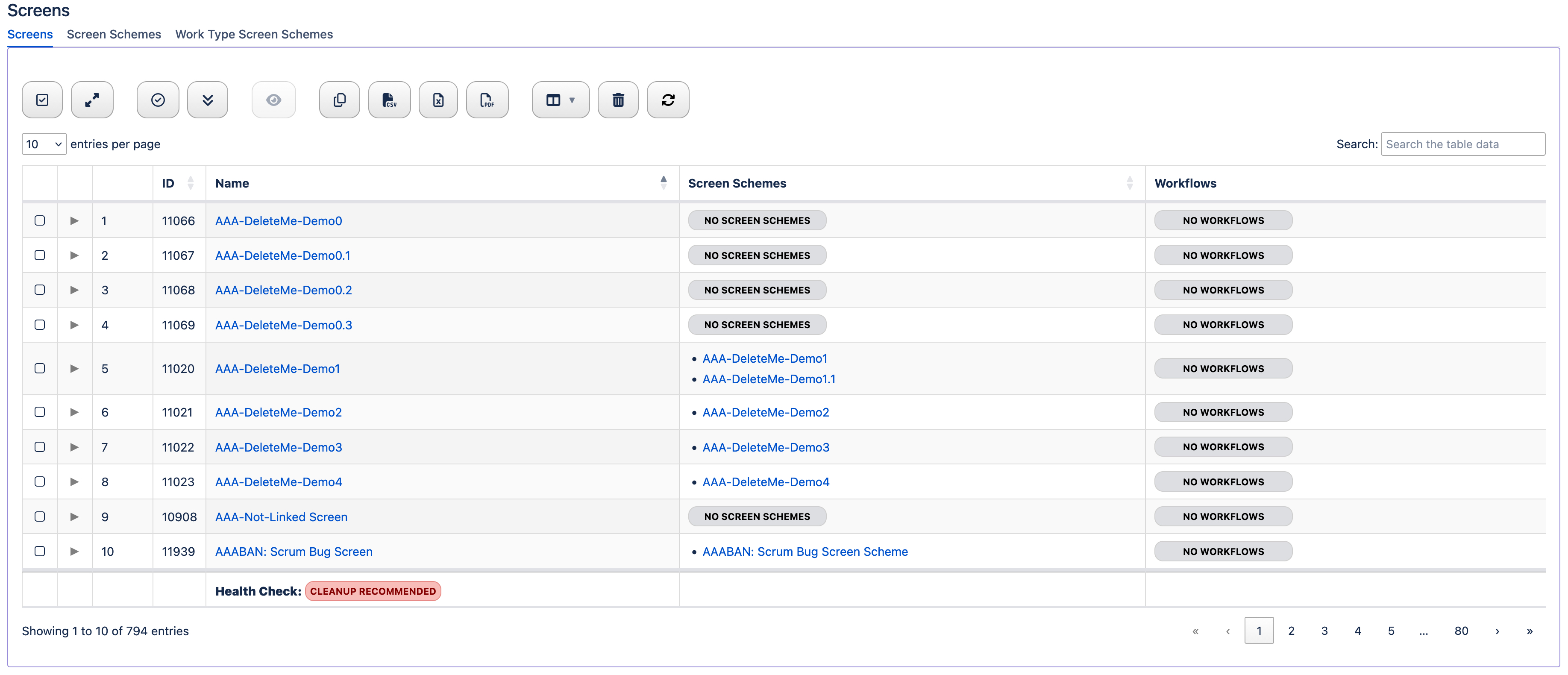
Audience: Jira Admins
Why this matters: Screen consistency improves UX and reduces maintenance effort.
Scope
- Screens
- Screen Schemes
- Work Type Screen Schemes
How to Use
- Identify reusable standards and safe deprecations.
- Unify create/edit/view mappings where possible.
- Decommision unused schemes.
Benefits
- Better UX consistency.
- Fewer change points when policy evolves.
🛡️ Schemes
Schemes overview
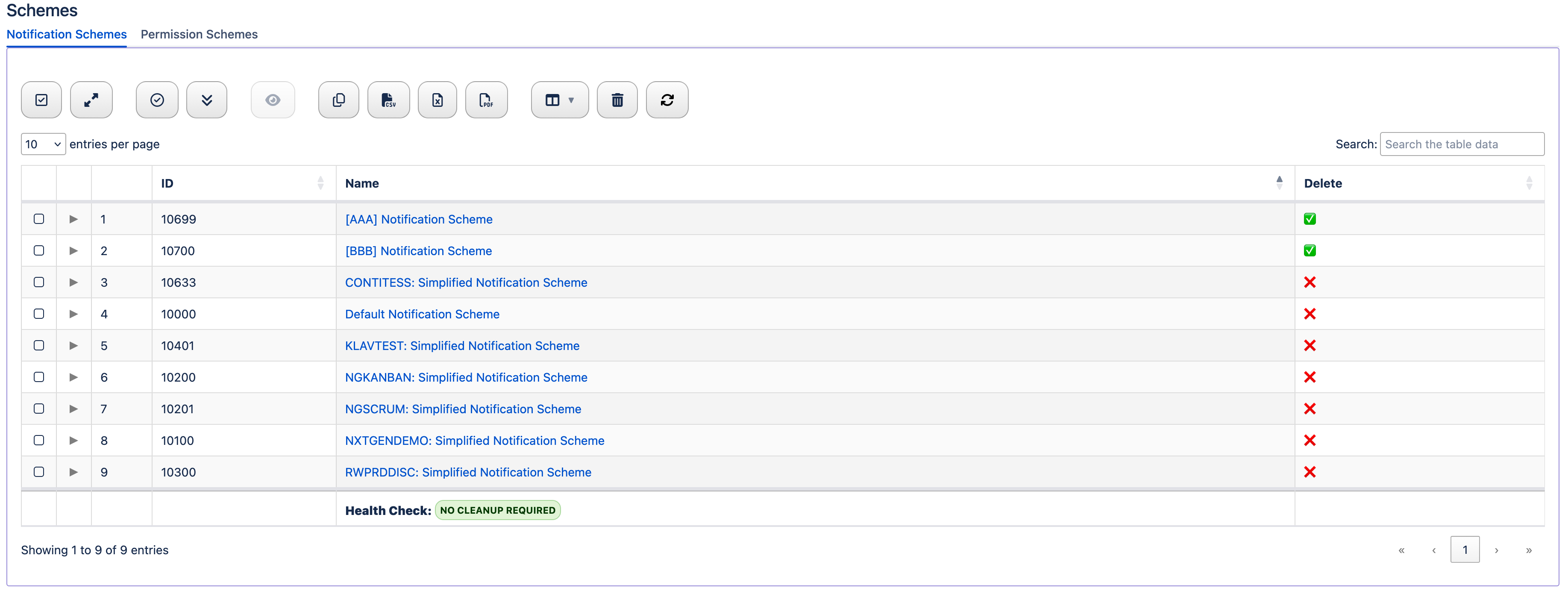
Audience: Jira Admins, Governance Leaders
Why this matters: Well-governed schemes enable audit readiness and least-privilege at scale.
Scope
- Notification Schemes
- Permission Schemes
How to Use
- Remove unlinked notification schemes.
- Standardize permission schemes and minimize exceptions.
Benefits
- Audit readiness and least-privilege at scale.
📊 Boards, Dashboards and Filters
Boards, Dashboards, and Filters overview
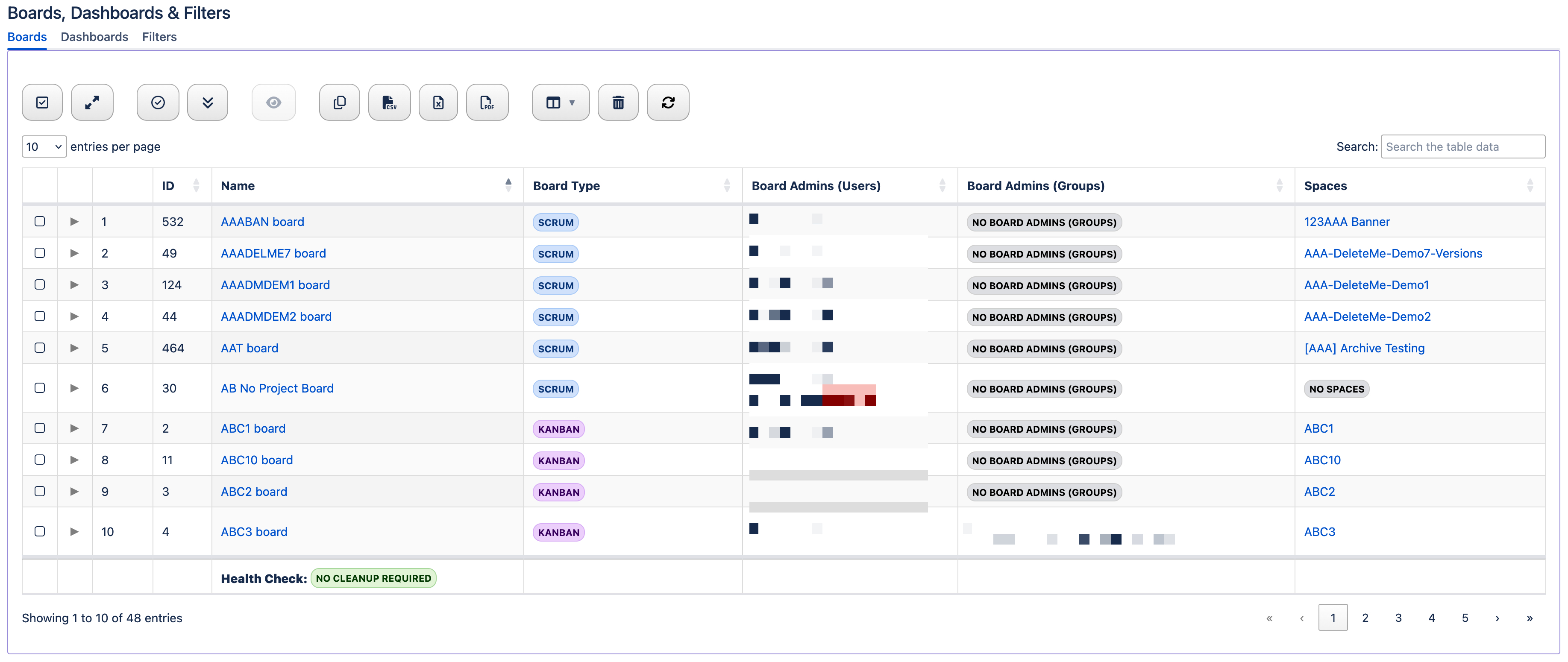
Audience: Jira Admins, Stewards
Why this matters: Ownership and sharing posture impact visibility, security and change management.
Scope
- Boards
- Dashboards
- Filters
How to Use
- Fix orphaned or mis-owned boards.
- Audit dashboard/filter sharing and subscriptions; adjust ownership as needed.
Benefits
- Controlled visibility with high ROI.
- Better change management informed by favorites and subscriptions.
👥 Groups and Users
Groups and Users overview
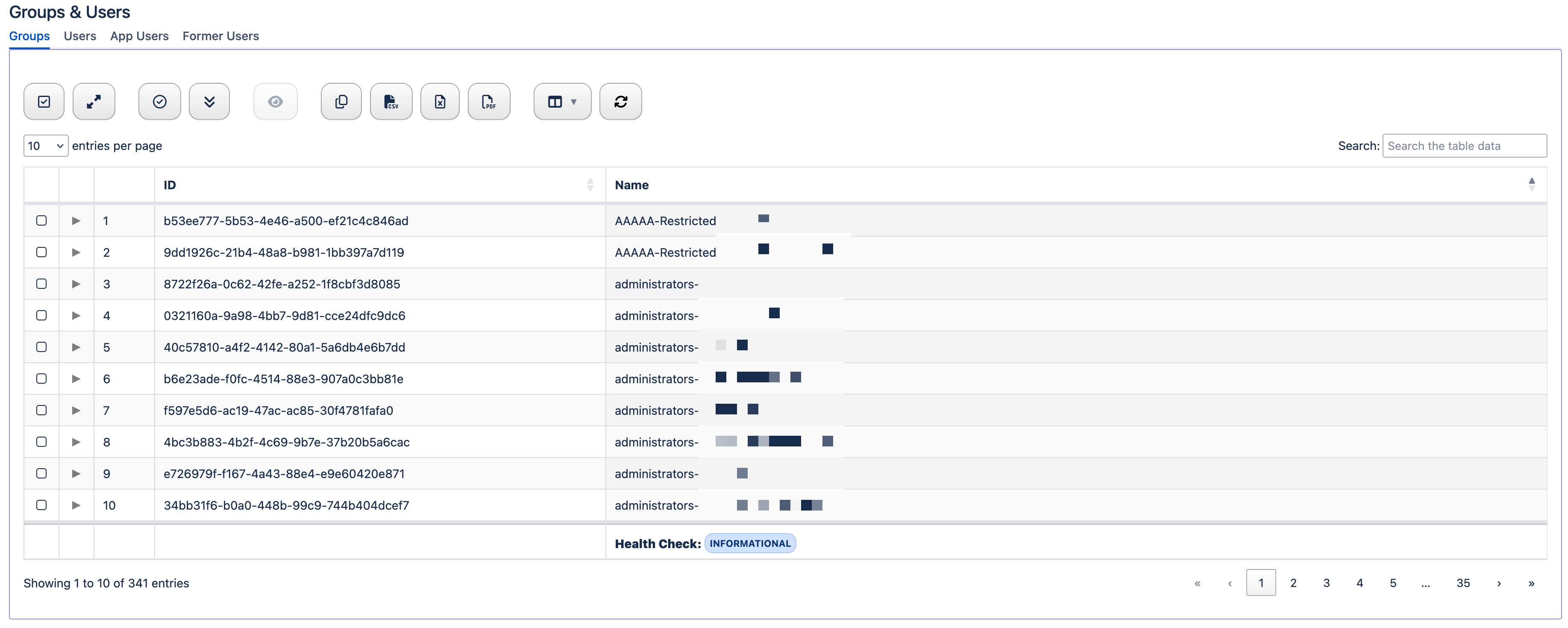
Audience: Jira Admins, Governance Leaders
Why this matters: Clear group hygiene and admin oversight enable least-privilege and continuity.
Scope
- Groups
- Active Jira Users
- Jira App Users
- Former Users
How to Use
- Surface admin-like groups and memberships.
- Validate app/bot accounts.
- Plan reassignment from former users.
Benefits
- Least‑privilege and continuity.
- Reduced breakage in dashboards and filters.
📖 Governix for Jira - Rovo Copilot Playbook
Copilot Overview
Audience: Jira Admins
Why this matters: Basic prompts to help you get started using the Governix for Jira agent.
Scope
- Basic Command Center Prompts
- Basic Jira Prompts
- Basic Confluence Prompts
How to Use
Below are some example agent prompts you can use. The agent is aware of the following governance types used by Governix for Jira (Audit, Cleanup, Prevention, Remediation, and Reporting). When working with prompts for Confluence, you should select an appropriate governance type to ensure a successful outcome. If not provided, the agent should prompt you for it. Jira interations do not require a governance type as the prompts are specific to Epic and Story work types.
You can also set the Jira and Confluence space keys to avoid constantly typing them in (see below). This does not prevent you from targeting other spaces, but is a convenience when you are using the agent during peek times.
Final note, but an important one, you can use update or replace as they have the same meaning for the agent. But if you use update, it will perform a full replacement. If you want to keep the existing content and add to it, be sure to use "append".
- Command Center:
- What is my Instance Score?
- What is my Instance Score and a breakdown of the KPI lozenges?
- What is my Maturity Score?
- What are my Risk Signals?
- What are my Risk Signals and their Rate, Percent, and Severity values?
- Governance Trends:
- How many snapshots do I have?
- Is this enough data to provide trending analysis of the domains?
- Provide me with the current posture of my domains.
- Provide me with an Executive Summary of my governance posture.
- Jira:
- Create an Epic using a Summary of "Cleanup - Risk Signals" and your last response.
- Create an Story using a Summary of "Cleanup - Risk Signals: Inactive Workflows".
- Create an Epic using a default Summary and Stories using the bulleted list in your response.
- Update the description of Epic ABC-1 with your last response.
- Append "Hello World" to the description of Epic ABC-1.
- Update the Summary of Epic ABC-1 with your last response.
- Confluence:
- Create an Audit page using a default title and your previous response.
- Create an Audit page with a title of "Hello World" and your last response.
- Update the Summary section of the page titled "Hello World" with your last response.
- Append "Hello Again" to the Evidence section of the page titled "Hello World".
- Rename the title of the Prevention governance page titled "Hello World" to "Hello Again".
- Advanced:
- Update the page titled "ABC" in the Jira section by linking Epic ABC-1.
- Link Epic ABC-1 to the page titled "Hello World" in space ABC7.
- Set the Jira and Confluence space key to ABC4.
- What is RenWare GO and GMAT?
- Show me my current GMAT maturity by domain.
Use Cases
Modern Jira cloud environments silently accumulate risk in the form of unused configurations, duplicate structures, permission gaps, and governance drift that slow teams down and expose the organization to operational and security issues. Governix for Jira gives administrators immediate visibility and control across their entire instance, turning complex governance data into clear, actionable insights. Whether responding to an audit, cleaning up years of configuration sprawl, or preventing future problems, teams can continuously maintain a healthy, scalable, and compliant Jira environment without guesswork or manual analysis. The following use cases are just a small example of the possibilities with Governiz for Jira:
- ✅ On‑Demand Governance Audit (Audit): When leadership, security, or compliance teams ask, “How healthy is our Jira instance?”, admins typically scramble across multiple reports and APIs. With this app, you can instantly generate a full governance audit showing inactive configurations, permission risks, duplicate structures, and system complexity—providing a complete, defensible view of your environment in minutes instead of hours.
- ✅ Large‑Scale Cleanup and Optimization (Cleanup): Over time, Jira instances accumulate duplicate workflows, unused fields, outdated schemes, and inactive assets that degrade performance and confuse users. This app identifies exactly what can be removed or consolidated, allowing teams to systematically reduce configuration bloat, improve usability, and streamline administration with confidence.
- ✅ Proactive Risk Prevention (Prevention): Most governance issues don’t start big—they grow quietly over time. By continuously monitoring configuration patterns (duplicates, drift, permission exposure), this app helps admins catch problems early before they escalate into performance issues, broken processes, or security risks. Instead of reacting to problems, teams stay ahead of them.
- ✅ Targeted Remediation Planning (Remediation): Knowing what’s wrong isn’t enough—you need a clear path forward. This app prioritizes the most impactful governance issues and organizes them into actionable insights, allowing admins to focus on high-value fixes first instead of getting overwhelmed by raw data. It turns complex system analysis into structured cleanup and remediation plans.
- ✅ Executive‑Ready Governance Reporting (Reporting): Stakeholders don’t want raw data—they want clarity. This app transforms technical governance metrics into simple, meaningful summaries that can be shared with leadership to demonstrate system health, justify cleanup efforts, and align governance initiatives with business goals.
Benefits
- Add meaning and narrative to your data.
- Quickly generate work items and pages for Audit, Cleanup, Prevention, Remediation, and Reporting.
- Easily construct the actionable reporting you need on-demand - No guesswork.
- Identify, review, and monitor trends unique to your enterprise.
- Use proven RenWare onboarding and maturity guidance built on decades of Atlassian ecosystem experience.